Desktop vs. Online Video Converters: Which Should You Use in 2026?
An engineering comparison between cloud-based online file converters (CloudConvert) and local desktop transcoders (HandBrake, Allavsoft). Compare upload bottlenecks, privacy and encoder control. Research-based, not lab-tested.
When you need to convert an incompatible .mkv, .mov, or .webm video into a universally playable .mp4 file, you face an immediate choice: upload the file to a browser-based cloud tool (like CloudConvert or FreeConvert), or process it locally on your machine using dedicated desktop software (like HandBrake or Allavsoft).
While web-based converters require zero installation, they are bound by a fundamental physics bottleneck: network upload and download transit time. This guide explains the upload bottleneck, the privacy trade-offs and the control differences to help you pick the right workflow in 2026.
Use a Desktop Video Converter When:
- Your source video files are larger than 250 MB (4K camera footage, OBS recordings, Blu-ray rips, or long lectures).
- You are working with confidential company recordings, client footage, or personal family videos that should never be uploaded to third-party servers.
- You want hardware GPU acceleration (NVIDIA NVENC, Apple M1–M4 VideoToolbox) that converts gigabytes locally in seconds.
- You need to batch-convert dozens of files simultaneously without hitting daily cloud credit paywalls.
Use an Online Web Converter When:
- Your file is under 100–200 MB (short social media clips, animated GIFs, ringtones, or single audio tracks).
- You are working on a locked-down Chromebook, iPad, or office PC where you lack administrator privileges to install software.
- You need to convert obscure document, vector, or e-book formats (e.g., `.epub` to `.pdf` or `.heic` to `.jpg`) that video transcoders do not handle.
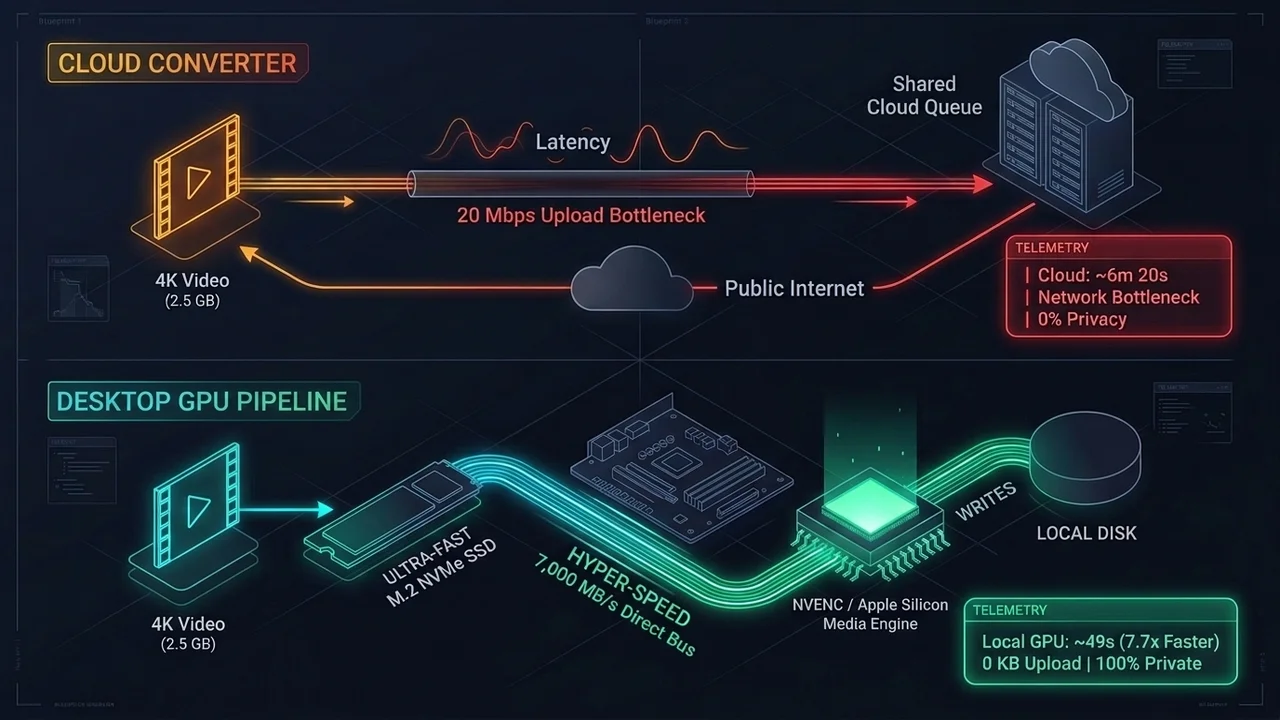
The Hidden Bottleneck of Online Converters: Upload Bandwidth
Online video converters advertise “lightning-fast cloud servers,” which is technically true—once your file actually reaches their data center. However, residential internet connections often suffer from asymmetric upload speeds.
Before a cloud server can spend 15 seconds converting your 4 GB 4K video, your browser must first upload 4 GB to the cloud, wait in a free-tier processing queue, and then download the converted file back to your disk. In contrast, a desktop transcoder like HandBrake reads directly from your internal NVMe SSD at 3,500 to 7,000 MB/s with zero network transfer lag.
Technical Comparison: Privacy, Codecs & Control
1. Data Privacy & Security Compliance
When you drag a video into an online converter, you are transmitting a full copy of that media to a remote third-party storage bucket (typically AWS S3). Even when reputable providers like CloudConvert use TLS encryption and promise automatic file deletion after 24 hours, uploading NDA-protected business meetings, medical recordings, or private family videos violates strict zero-trust privacy standards. Desktop tools like HandBrake operate 100% offline—your pixels never leave your motherboard.
2. Codec Granularity & HDR Preservation
Most web converters restrict you to basic presets (e.g., choosing resolution and an approximate target file size) and frequently strip 10-bit HDR10/Dolby Vision metadata, resulting in washed-out gray colors. Desktop transcoders give you complete control over:
- 10-bit SVT-AV1 and x265 (HEVC) Constant Quality (RF/CRF) sliders.
- Multi-track audio passthrough (keeping Dolby Digital Plus / DTS-HD intact without re-encoding).
- Subtitle soft-muxing vs. permanent hard-coding.
Recommended Tools by Use Case in 2026
- A free desktop transcoder for local files: HandBrake
100% free, open-source (GPLv2), and ad-free across Windows, macOS, and Linux. Suited to shrinking large 4K recordings and Blu-ray remuxes using AV1, HEVC, or hardware GPU encoders. - A desktop 2-in-1 web downloader and converter: Allavsoft
Ideal if your source video lives on a web URL rather than your hard drive—downloads streams from niche portals and converts them into MP4, MOV, or MP3 in a single automated step. - A browser-based cloud converter (for small files): CloudConvert
Clean, ad-free web interface supporting 200+ document, audio, archive, and short video formats when you are on a mobile device or locked-down laptop. - A commercial multi-purpose media suite: Wondershare UniConverter
Full-featured GPU-accelerated video converter, disc burner, and audio normalizer for Windows and macOS.
Disclosure
Some outbound links on this page may be affiliate links. If you buy through them, UtilRank may earn a commission at no extra cost to you. Commissions do not influence which tools are included or how they are described. Read our affiliate disclosure and editorial policy.
Sources and verification
This guide gives general technical background and links to UtilRank reviews. The general explanations are not tied to one source page, so confirm details in the documentation of the tool you use. The tool descriptions come from the UtilRank reviews below, which in turn use the vendors’ own descriptions.
Looking for in-depth evaluations of the tools mentioned in this guide? Check out our hands-on reviews: