How to Batch Extract High-Quality Audio from Video Playlists (2026 Guide)
Step-by-step technical guide to extracting MP3, AAC, Opus, and lossless FLAC audio from online video playlists while preserving ID3 metadata, album artwork, and track order.
Converting multi-hour educational lecture series, video podcasts, or live music playlists into offline audio files is a staple workflow for commuters, DJs, and media archivists. However, using sketchy web-based “YouTube to MP3” converters one link at a time exposes your browser to aggressive malvertising, strips away track metadata, and re-compresses audio into muddy 128 kbps files.
In this technical guide, we walk through the exact audio codec ceiling of streaming platforms, how to avoid generational transcoding loss, and how to batch-extract entire playlists with automated ID3 tags and album art using dedicated desktop tools.
Best Practices for Clean Audio Extraction
- Extract native Opus (160 kbps) or AAC/M4A (256 kbps) streams directly when your player supports them to avoid re-encoding loss.
- Use 320 kbps CBR MP3 when exporting for legacy car stereos, hardware DJ controllers, or universal MP3 players.
- Enable automated ID3v2.4 metadata parsing so track numbers (01/50), artist names, and cover art embed automatically.
- Cap batch download concurrency at 2–3 threads to prevent HTTP 429 IP rate-limiting on 100+ track playlists.
Common Audio Ripping Mistakes to Avoid
- Converting standard web video streams into FLAC or WAV expecting "studio lossless" quality (bloats file size 5x without adding lost frequencies).
- Using single-link online web converters that inject pop-up adware and cap bitrates at 128 kbps.
- Downloading playlists without track-index prefixes, causing music players to sort lectures or albums alphabetically instead of chronologically.
1. Acoustic Reality Check: Choosing the Right Audio Format & Bitrate
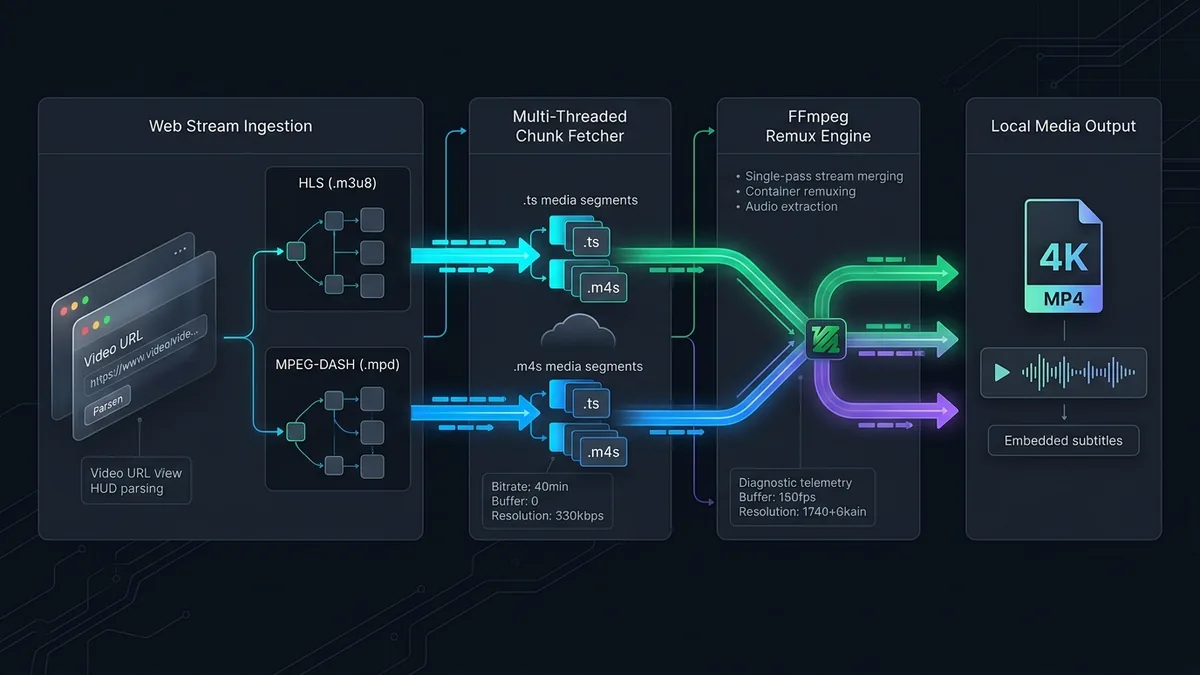
Before queueing a 50-video playlist, it is vital to understand what streaming platforms actually transmit over MPEG-DASH and HLS manifests versus what your target container stores:
| Output Format | Ideal Bitrate Setting | Acoustic Fidelity & Compression Behavior | Best Hardware / Use Case |
|---|---|---|---|
| Opus (.opus / .ogg) | 160 kbps VBR | 100% Native Stream (Zero Generation Loss) — Direct demux of YouTube’s highest audio tier (20 kHz cutoff) | Android, VLC, Foobar2000, Plex / Jellyfin servers |
| AAC (.m4a) | 256 kbps VBR/CBR | Near-Transparent — Native format for Apple ecosystems and Vimeo/SoundCloud high-tier streams | iPhone, iPad, macOS Apple Music, modern car infotainment |
| MP3 (.mp3) | 320 kbps CBR | Universal Compatibility — Transcoded via LAME engine; negligible loss at 320k ceiling | Legacy car USB ports, Pioneer/Denon DJ decks, all MP3 players |
| FLAC (.flac) | 16-bit / 44.1 kHz | Lossless Container — Only truly lossless if pulled from Bandcamp or uncompressed archives | Hi-Fi DAPs & archival storage (only when source is lossless) |
[!NOTE] Note on “lossless” web rips: Public video platforms stream audio compressed in Opus (up to 160 kbps) or AAC (128–256 kbps). If you convert a standard YouTube video into a 35 MB FLAC file, the container is lossless, but the acoustic frequencies above 18–20 kHz were already discarded when the video was uploaded. Only select FLAC or WAV when archiving from platforms that explicitly host uncompressed master streams, or when your video editing NLE requires uncompressed PCM audio.
2. Preserving ID3 Metadata, Track Order & Album Art
The biggest advantage of dedicated desktop extraction software over browser extensions is automated ID3v2 metadata injection. When parsing a playlist manifest, desktop tools automatically map stream variables into standard audio tags:
- Video Title ➔ Mapped to
Track Title - Channel / Uploader Name ➔ Mapped to
Contributing Artist - Playlist Title ➔ Mapped to
Album Name - High-Res Video Thumbnail ➔ Cropped and embedded as
Front Cover Art - Playlist Array Position ➔ Mapped to
Track Number (01/50, 02/50)
Without automated track-index numbering, transferring a 30-part history lecture series to an iPhone or USB drive results in episodes playing out of order alphabetically.
3. Step-by-Step Batch Extraction Workflows
Depending on which streaming sites you use, here are the three most reliable desktop workflows in 2026:
Method A: Allavsoft (Best for Niche Lecture Sites, SoundCloud & Direct Format Conversion)
As detailed in our Allavsoft Review, Allavsoft excels when pulling audio from educational portals, Vimeo, Dailymotion, and public audio hosts where YouTube-only tools fail:
- Copy the full playlist or course page URL into the Allavsoft input box.
- Check “Automatically Convert to” and select MP3 (General Audio) or M4A / FLAC.
- Open the quality dropdown and select Higher (320 kbps).
- Click the Download button; when prompted to parse the single URL or the full playlist, select Download All to process and mux the queue in a single pass.
Method B: 4K Video Downloader+ (Best for YouTube Playlists & Smart Mode)
For users focused primarily on YouTube, Twitch, and Bilibili with a modern dark-mode UI:
- Toggle the Smart Mode switch (lightbulb icon) in the top bar.
- Set the mode to Extract Audio, choose MP3 or OGG (Opus), and select High Quality (Original).
- Under Preferences > General, check “Generate .m3u file for playlists” and “Add numeration to file names in playlists”.
- Click Paste Link—every track in the playlist will queue, download, and tag automatically without confirmation pop-ups. Check our full 4K Video Downloader+ Review.
Method C: yt-dlp + FFmpeg (Best Free Open-Source Terminal Command)
For power users comfortable with the command line, yt-dlp combined with ffmpeg extracts native audio and embeds thumbnails with zero software cost:
yt-dlp -x --audio-format mp3 --audio-quality 0 --embed-thumbnail --embed-metadata -o "%(playlist_index)s - %(title)s.%(ext)s" "PLAYLIST_URL"4. Troubleshooting Common Batch Queue Errors
- Queue Stalls on Deleted or Private Videos: Public playlists frequently contain one or two geo-blocked or deleted videos. Always enable “Skip unavailable videos automatically” in your downloader settings so unattended overnight queues do not pause waiting for user input.
- HTTP 403 / 429 Rate Limiting on Massive Playlists: If you queue a 250-track playlist with 10 simultaneous download threads, the CDN will temporarily flag your IP address for scraping. Restrict simultaneous downloads to 2 or 3 threads for 100% completion reliability.
- Inconsistent Volume Levels Across Tracks: Because independent creators master audio at different loudness levels (ranging from -24 LUFS to -9 LUFS), running your extracted MP3 folder through a lossless gain normalizer like MP3Gain or foobar2000 ReplayGain ensures consistent playback volume in the car.
Related Software Reviews & Guides
- Allavsoft Review (2026) — Multi-source batch video downloader & audio converter with 10,000-seat giveaway.
- 4K Video Downloader+ Review — Smart Mode audio extraction and channel archiving.
- Wondershare UniConverter Review — GPU-accelerated video converter and audio normalizer.
- Desktop vs. Online Video Converters Guide — Technical comparison of local NVMe transcoding vs cloud upload bottlenecks.
Disclosure
Some outbound links on this page may be affiliate links. If you buy through them, UtilRank may earn a commission at no extra cost to you. Commissions do not influence which tools are included or how they are described. Read our affiliate disclosure and editorial policy.
Sources and verification
This guide gives general technical background and links to UtilRank reviews. The general explanations are not tied to one source page, so confirm details in the documentation of the tool you use. The tool descriptions come from the UtilRank reviews below, which in turn use the vendors’ own descriptions.
Looking for in-depth evaluations of the tools mentioned in this guide? Check out our hands-on reviews: