How to Recover Deleted Files from SSDs, HDDs & SD Cards: Forensic Guide (2026)
A data recovery guide explaining why SSD TRIM commands permanently erase data, how MFT and RAW sector carving work, and step-by-step emergency recovery rules.
Accidentally formatting an SD card after a photoshoot, emptying the Recycle Bin on an important work folder, or seeing an external hard drive suddenly turn into an unreadable RAW partition triggers immediate panic. However, what you do in the first 5 minutes after data loss determines whether your recovery rate will be 98% or 0%.
In this forensic guide, we explain what actually happens to your binary data when a file is deleted, why internal NVMe SSDs behave radically differently from external USB drives and SD cards, and how to execute a safe, non-destructive recovery.
High Recovery Probability (90% – 98% Success)
- Camera SD / microSD / CFexpress Cards: Accidentally formatted in-camera or corrupted during video recording (No OS TRIM).
- External Mechanical Hard Drives (HDDs): Deleted folders, quick-formatted partitions, or corrupted RAW file tables.
- External USB Flash Drives & USB-C SSDs: Standard USB Mass Storage protocol typically blocks OS TRIM commands.
Low or Zero Software Recovery Probability
- Internal NVMe / SATA SSDs (With TRIM Active): Once Windows or macOS issues the hardware TRIM command, NAND cells are zeroed out within minutes.
- Physically Clicking / Grinding Hard Drives: Mechanical read/write head failure requires a physical cleanroom lab, never software scanning.
- Overwritten Storage Sectors: Drives where dozens of gigabytes of new files were saved after the deletion occurred.
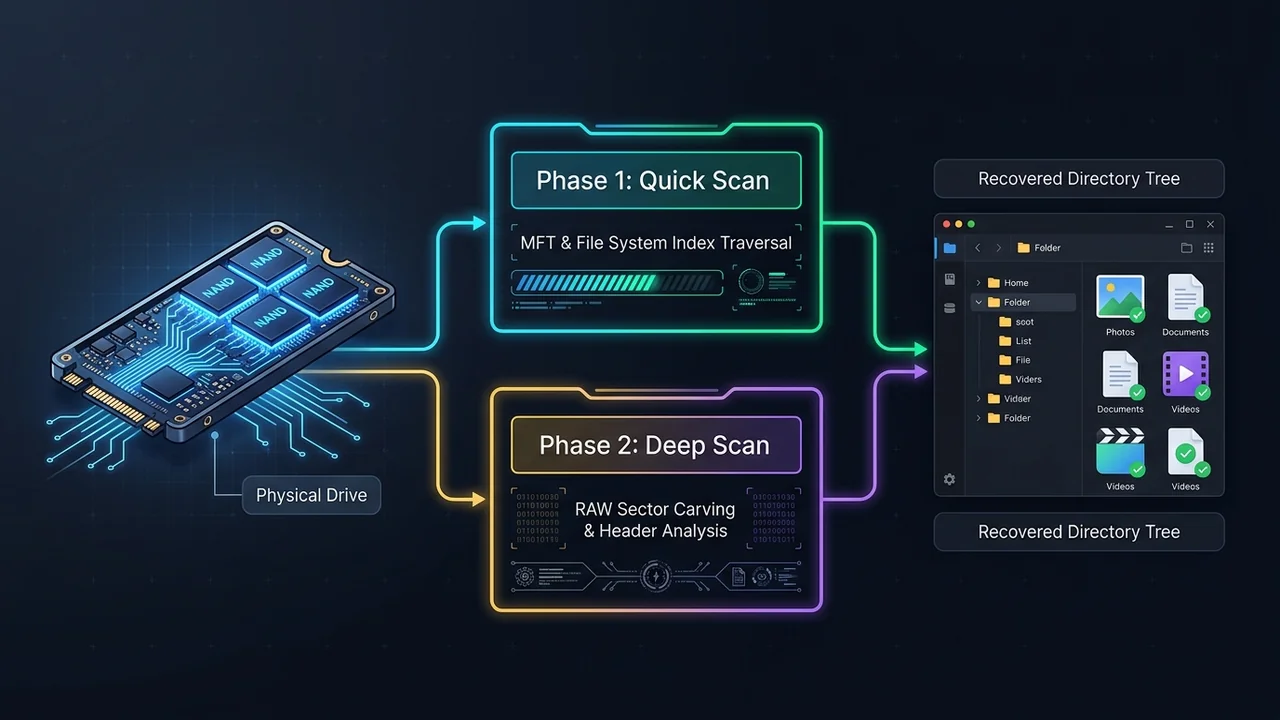
1. How File Deletion Actually Works (Index Pointers vs. Raw Sectors)
When you press Shift + Delete or perform a Quick Format on a storage volume, your operating system does not spend hours overwriting gigabytes of ones and zeros. Instead, it performs a two-millisecond bookkeeping update:
- Master File Table (MFT) / Directory Removal: On NTFS, APFS, or exFAT drives, the operating system removes the file’s index pointer from the master directory and marks the underlying storage clusters as “Available for New Data”.
- Binary Data Persistence: The actual binary payload of your JPEG photo, MP4 video, or DOCX spreadsheet remains sitting intact on the physical sectors until a new file happens to overwrite those exact addresses.
Dedicated recovery suites like EaseUS Data Recovery Wizard Pro and Disk Drill Pro exploit this behaviour using two scanning phases: reading the residual MFT directory pointers (Quick Scan) and scanning raw storage blocks byte-by-byte for known file header signatures like FF D8 FF for JPEG or ftyp for MP4 (Deep Sector Carving).
2. The SSD TRIM Problem Explained (And How to Check If It’s Active)
Why do mechanical hard drives (HDDs) and SD cards usually offer better recovery chances than internal laptop SSDs? The answer is the hardware TRIM (Deallocate) command.
Unlike magnetic hard drives that can overwrite existing data directly, NAND flash memory cells inside an SSD must be electrically erased before new data can be written to them. To prevent slow write speeds later, modern operating systems immediately send a TRIM command to the SSD controller whenever a file is deleted. The SSD’s internal garbage-collection routine then zeroes out those blocks automatically—even when the computer is sitting idle—returning only 00 00 00 00 to any forensic recovery scanner.
Storage Media and TRIM at a Glance
| Storage Device Type | Connection Interface | Is OS TRIM Active? | Emergency Action Required |
|---|---|---|---|
| Internal NVMe / SATA SSD | M.2 PCIe / Internal SATA | Yes (By Default) | Power off PC immediately; boot via WinPE USB |
| External Portable SSD | USB 3.2 Mass Storage (BOT) | No (Blocked by USB bridge) | Unplug USB cable until recovery software is ready |
| Camera SD / microSD Card | Card Reader / USB | No (SD protocol lacks TRIM) | Flip physical write-protect switch on SD card |
| Mechanical Hard Drive (HDD) | Internal SATA / External USB | No (Magnetic platters) | Stop all disk writes; scan from a separate drive |
3. Step-by-Step Emergency Recovery Protocol
If you just lost critical files, follow this strict forensic sequence to prevent accidental self-overwriting:
Step 1: Cease All Write Operations Immediately
If the lost files were on your primary C: system drive, close your web browser (which constantly writes megabytes of cache files per minute), pause cloud sync apps (OneDrive, Dropbox, Google Drive), and do not install any new updates. If the data was on an external drive or SD card, unplug it until your recovery tool is installed.
Step 2: Install Recovery Software on a Different Drive
Never download or install data recovery software onto the same drive partition you are trying to rescue. A 150 MB software installation can permanently overwrite the exact unallocated clusters holding your deleted documents. Install the program onto a secondary drive or a separate USB stick.
Step 3: Run a Dual-Stage Scan & Preview Integrity
Choose the right tool based on your specific loss scenario:
- For Corrupted MP4/JPEG Repair & 2 GB Free Recovery: Read our EaseUS Data Recovery Wizard Pro Review. EaseUS includes an automated file-header repair engine that fixes broken video and photo streams during export, and provides up to 2 GB of free recovery to test file integrity first.
- For Failing Drives with Bad Sectors & GoPro/DJI Footage: Check our Disk Drill Pro Review, which includes a free byte-to-byte
.dmg/.isodisk imaging tool and an Advanced Camera Recovery (ACR) module for interleaved action-cam video chunks.
Step 4: Export Recovered Files to an External Target
When saving recovered files, always select a destination folder on a different physical drive than the one being scanned. Writing recovered files back onto the source drive mid-scan will corrupt remaining unallocated sectors in a chain reaction.
Data Recovery Software to Look At
Related Data Recovery Guides & Reviews
- EaseUS Data Recovery Wizard Review — Overview of EaseUS’s scanning approach, based on the vendor’s descriptions.
- CleverFiles Disk Drill Pro Review — Byte-level disk imaging and Advanced Camera Recovery (ACR) analysis.
Disclosure
Some outbound links on this page may be affiliate links. If you buy through them, UtilRank may earn a commission at no extra cost to you. Commissions do not influence which tools are included or how they are described. Read our affiliate disclosure and editorial policy.
Sources and verification
This guide gives general technical background and links to UtilRank reviews. The general explanations are not tied to one source page, so confirm details in the documentation of the tool you use. The tool descriptions come from the UtilRank reviews below, which in turn use the vendors’ own descriptions.
Looking for in-depth evaluations of the tools mentioned in this guide? Check out our hands-on reviews: