How to Fix High Ping & Packet Loss in Online Games: Diagnostic Guide (2026)
A step-by-step network engineering guide for PC and console gamers to isolate Wi-Fi jitter, fix router bufferbloat, test ISP BGP peering bottlenecks, and eliminate packet loss.
High ping, erratic jitter spikes, and sudden packet bursts ruin competitive matches in latency-sensitive titles like Valorant, Counter-Strike 2, EA Sports FC, Apex Legends, and Warzone. Most players waste time tweaking placebo Windows Registry keys or changing DNS servers without diagnosing where the actual network bottleneck lives.
Every online game connection passes through two distinct zones: your local home network (LAN) and your Internet Service Provider’s external backbone (WAN). This diagnostic guide walks you through isolating the exact failure point and applying permanent engineering fixes.
Signs of a Local Home Network (LAN) Fault
- Pinging your local router gateway (192.168.1.1) shows latency spikes above 2 ms or dropped packets.
- Lag spikes occur exclusively when another household device streams 4K video or uploads cloud backups (Bufferbloat).
- You are connected over Wi-Fi (even Wi-Fi 6/6E) through walls or floors with fluctuating signal strength.
- The Fix: Switch to a Cat6 Ethernet cable and enable SQM (Smart Queue Management) on your router.
Signs of an External ISP Routing (WAN) Fault
- Your local router ping is a rock-solid <1 ms over Ethernet, yet in-game ping still spikes during evening peak hours (20:00–23:00).
- You experience 1% to 5% packet loss or rubber-banding only on specific international server hubs (e.g., Frankfurt, Tokyo, or Virginia).
- Traceroute shows your ISP bouncing traffic through congested geographical detours before reaching the game server.
- The Fix: Bypass your ISP's default BGP routing table using a multi-path Game Private Network (GPN) like GearUP Booster or ExitLag.
Step 1: Isolate Where the Bottleneck Lives (The Gateway Test)
Before changing any settings, determine whether your lag originates inside your house or outside on your ISP’s fiber network. Open Command Prompt (Windows) or Terminal (macOS) and run a continuous ping to your local router gateway for 60 seconds:
ping 192.168.1.1 -n 60(Note: If your router uses 192.168.0.1 or 10.0.0.1, substitute that gateway IP address).
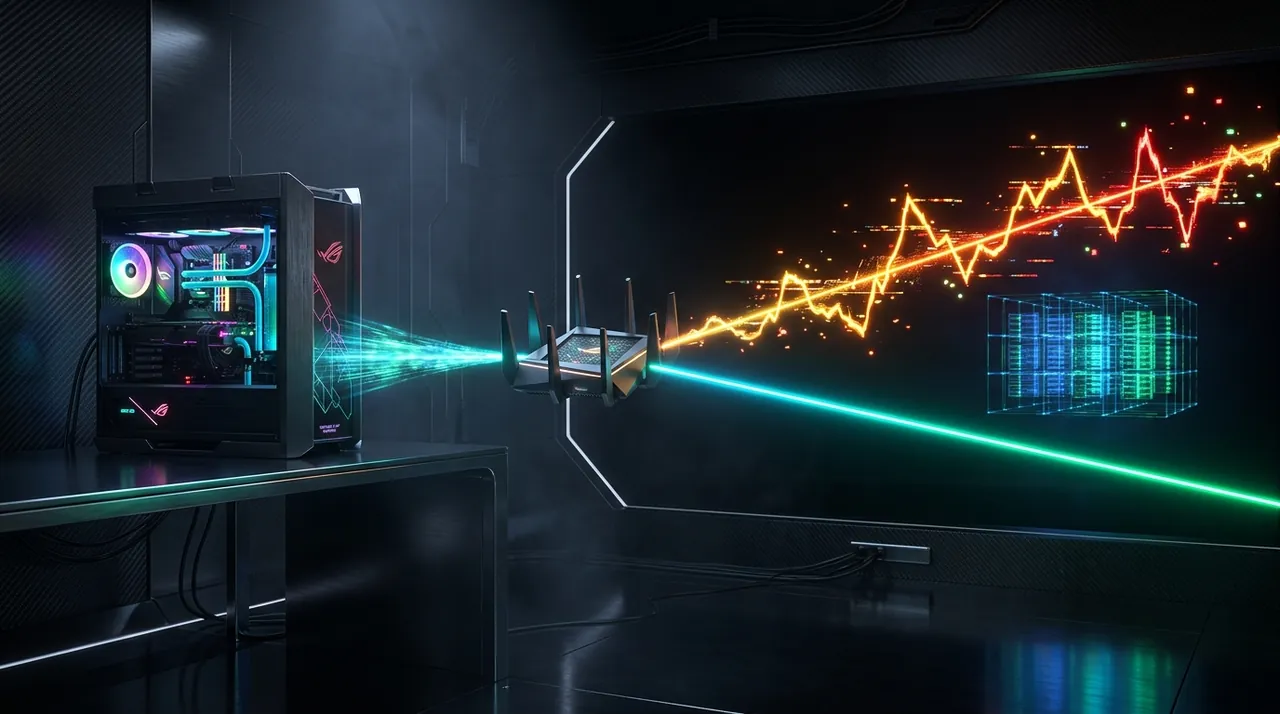
- Result A — Gateway Ping fluctuates (>2 ms to 45 ms) or drops packets: Your problem is 100% inside your home. No external software or ISP upgrade will help until you fix your local connection in Step 2.
- Result B — Gateway Ping is a flat <1 ms with 0% loss: Your home hardware is pristine. The bottleneck is happening outside your home on your ISP’s peering nodes. Skip directly to Step 4.
Step 2: Fix Local Hardware Jitter & Router Bufferbloat
If Step 1 revealed local instability, apply two mandatory hardware corrections:
1. Replace Wi-Fi with Shielded Cat6 Ethernet
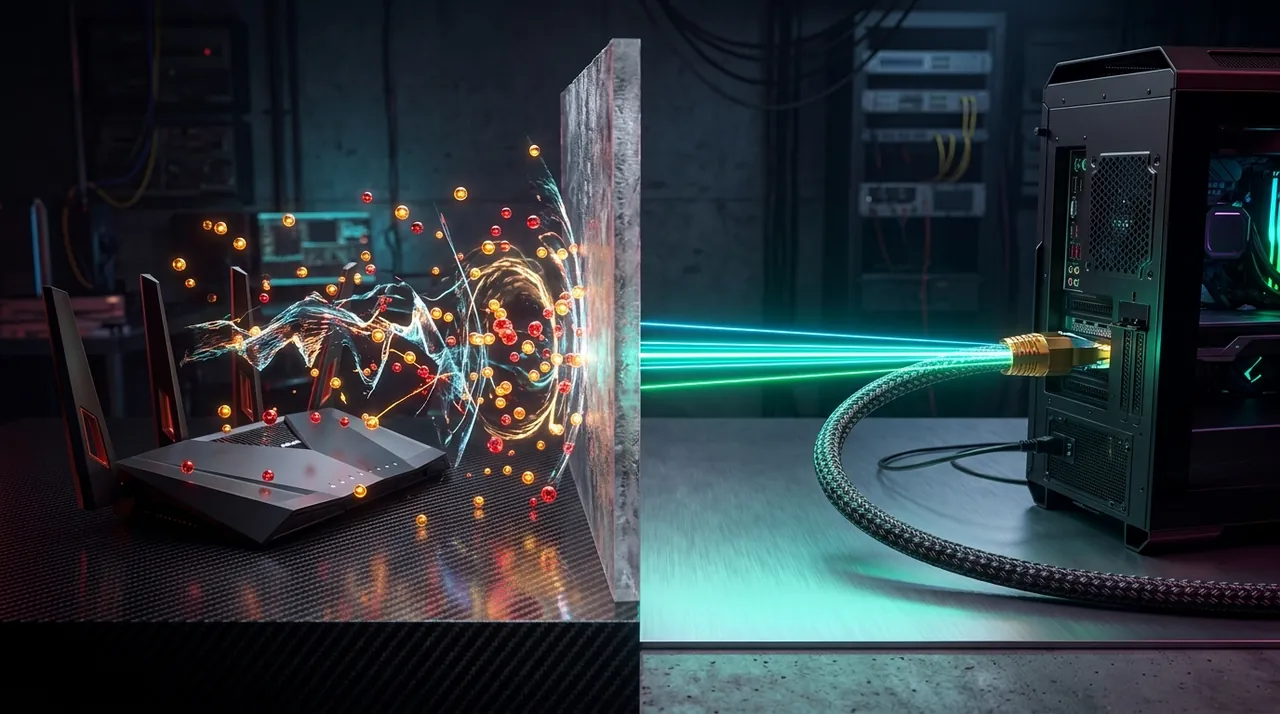
Wi-Fi—including Wi-Fi 6E and Wi-Fi 7—is a half-duplex radio medium. Only one device on a channel can transmit at a microsecond interval; if your phone, smart TV, or a neighbor’s router transmits simultaneously, packets collide and trigger a random backoff timer, manifesting as a sudden 15–40 ms jitter spike in-game. Running a direct Cat6 Ethernet cable provides full-duplex transmission (simultaneous send and receive) at a locked <0.5 ms baseline.
2. Cure Router Bufferbloat with SQM (FQ-CoDel / CAKE)
Bufferbloat occurs when a large download or upload saturates your internet bandwidth, causing your router’s memory buffer to fill up and forcing tiny 64-byte UDP game packets to wait in line behind massive video chunks.
- Run a diagnostic on the Waveform Bufferbloat Test.
- If your unloaded ping is 12 ms but your “Loaded Active Ping” jumps by +50 ms or more (Grade C, D, or F), log into your router administration panel and enable QoS / SQM (Smart Queue Management) using the FQ-CoDel or CAKE algorithm, capping your maximum bandwidth at 90% of your ISP speed.
Step 3: Debunking the DNS Myth (Why 1.1.1.1 Won’t Lower In-Game Ping)
Countless gaming tutorials claim that changing your Windows or PS5 DNS settings to Cloudflare (1.1.1.1) or Google (8.8.8.8) reduces in-game latency. From a network engineering standpoint, this is completely false.

- What DNS Actually Does: The Domain Name System acts as a phonebook that translates a domain name (e.g.,
riotgames.com) into a numerical IP address (104.16.x.x). - Why It Has Zero Impact on Live Matches: Your game client performs a DNS lookup only once when loading the main menu or lobby. Once you load into a match, your PC communicates directly with the game server’s raw numerical IP address via UDP. DNS is completely uninvolved during live gameplay and has a 0.0 ms impact on your match ping.
Step 4: Fixing ISP BGP Peering & Evening Packet Loss
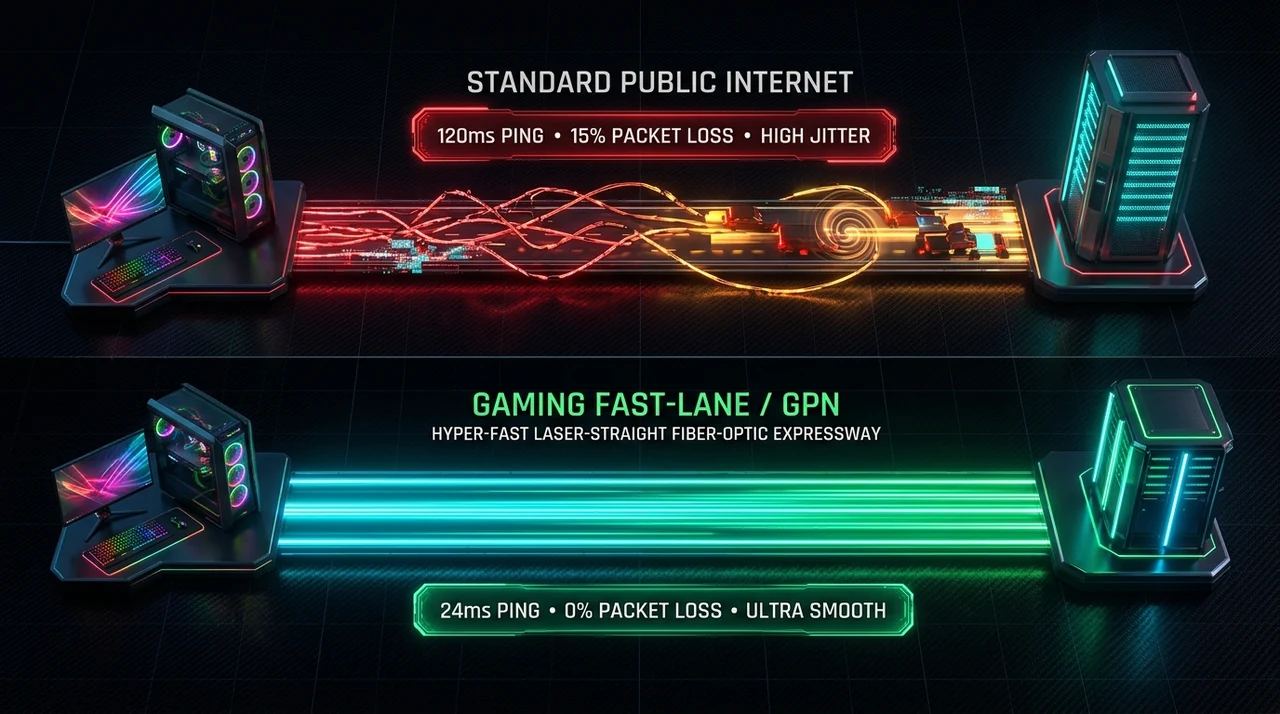
If you are wired via Cat6 Ethernet with zero local bufferbloat, yet your ping still climbs from 30 ms in the afternoon to 65 ms with 3% packet loss at 21:00, you are experiencing ISP Peering Congestion.
Residential ISPs configure their Border Gateway Protocol (BGP) routing tables to minimize commercial data-transit fees rather than latency. Instead of routing your packets along a direct Tier-1 fiber line to Frankfurt, Amsterdam, or Tokyo, your ISP may route traffic through congested regional Internet Exchange Points (IXPs).
Diagnostic Comparison: Local Fixes vs. Routing Fixes
| Network Symptom | Root Technical Cause | Does Ethernet / QoS Fix It? | Does a Gaming GPN Fix It? |
|---|---|---|---|
| Random 20–80 ms spikes every few seconds | Local Wi-Fi RF interference & half-duplex collisions | Yes | No (Cannot bypass local Wi-Fi) |
| Ping skyrockets when family watches Netflix | Local router queue saturation (Bufferbloat) | Yes (Via SQM / QoS) | No (Local bandwidth is full) |
| High ping & 2–4% loss only between 19:00–23:00 | Congested ISP Tier-2/3 peering exchange nodes | No | Yes (Bypasses public IXP hops) |
| High base ping to cross-region servers | Sub-optimal ISP BGP geographical detour | No | Yes (Direct backbone tunnel) |
| Strict NAT Type 3 blocking console lobbies | ISP Carrier-Grade NAT (CGNAT) port filtering | Rarely | Yes (Opens NAT via proxy node) |
Step 5: Bypassing Bad ISP Routes with a Dedicated GPN
Unlike a consumer VPN that encrypts your entire PC and slows down traffic, a specialized Gamer Private Network (GPN) hooks exclusively into the game’s UDP packet stream and tunnels it across dedicated, uncongested Tier-1 fiber backbones.

Recommended GPN Solutions:
- For multi-platform gamers (PC, PS5, Xbox, Switch): Read our in-depth GearUP Booster Review, which uses dual-tunnel Adaptive Intelligent Routing (AIR) to duplicate packets; the vendor presents it as a way to reduce evening packet loss.
- For Hardcore PC-Only Esports Tweakers: Check our in-depth ExitLag Review, offering manual 4-path UDP routing and dual-ISP Multi-Internet failover.
GearUP Booster (UtilRank Verified Review)
Utilizes Adaptive Intelligent Routing (AIR) to maintain multi-path redundancy to over 3,000 supported game servers. Fully compatible with PC, PlayStation, Xbox, Nintendo Switch, and mobile platforms.
Summary Checklist for Competitive Gamers
- Verify your local baseline: Run
ping 192.168.1.1 -n 60to confirm your local router response is locked at <1 ms with 0% packet loss. - Eliminate Wi-Fi half-duplex collisions: Connect a direct shielded Cat6 Ethernet cable between your PC/console and home router.
- Cure household bufferbloat: Enable SQM (FQ-CoDel / CAKE) in your router settings capped at 90% of your maximum line rate.
- Bypass evening ISP throttling: If packet loss or routing detours persist during peak hours (19:00–23:00), deploy a specialized split-tunnel GPN (GearUP Booster or ExitLag) to route UDP game packets across dedicated Tier-1 fiber backbones.
Disclosure
Some outbound links on this page may be affiliate links. If you buy through them, UtilRank may earn a commission at no extra cost to you. Commissions do not influence which tools are included or how they are described. Read our affiliate disclosure and editorial policy.
Sources and verification
This guide gives general technical background and links to UtilRank reviews. The general explanations are not tied to one source page, so confirm details in the documentation of the tool you use. The tool descriptions come from the UtilRank reviews below, which in turn use the vendors’ own descriptions.
Looking for in-depth evaluations of the tools mentioned in this guide? Check out our hands-on reviews: